

Key Capabilities
Model Building
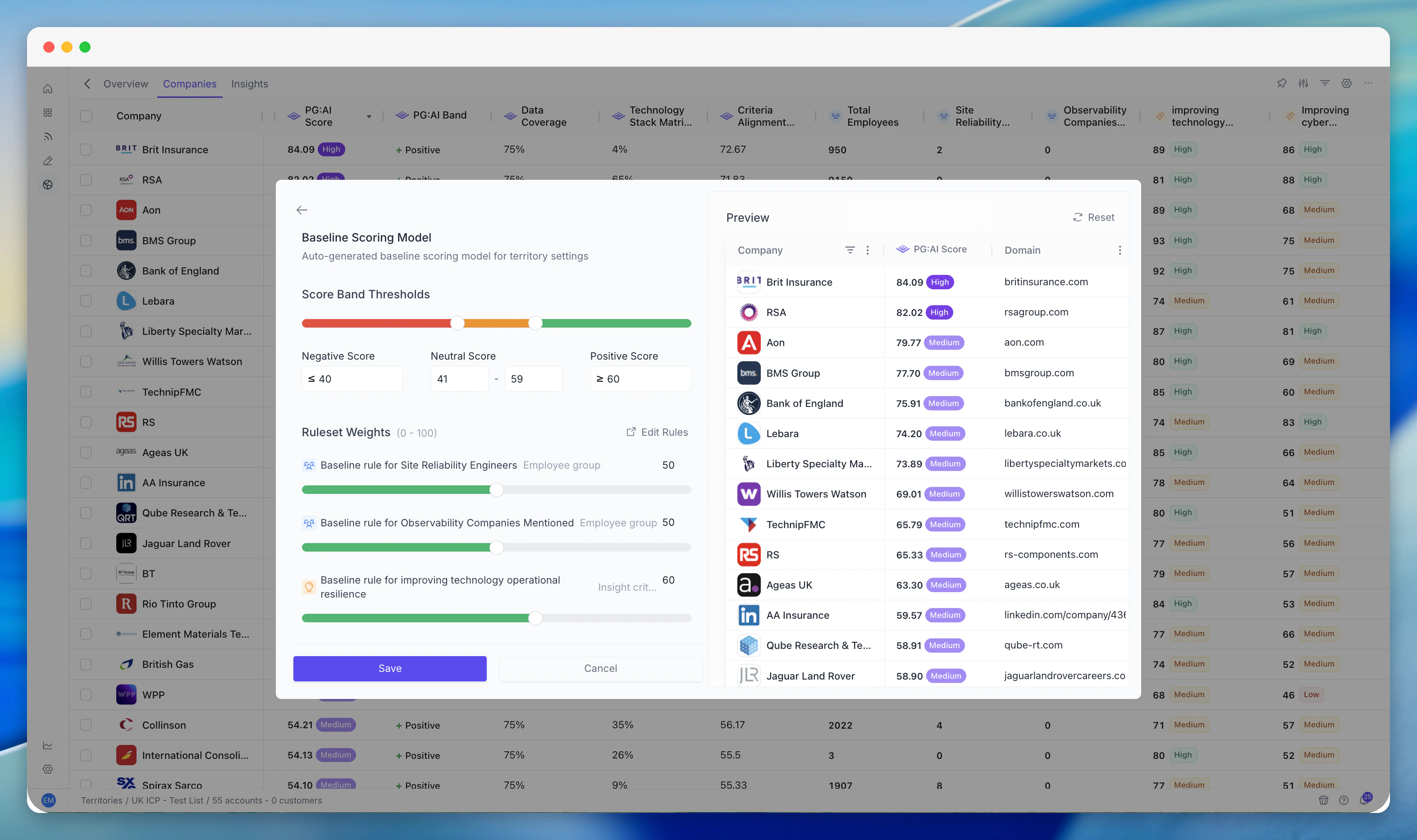
Build and manage multiple scoring models per territory. Define scoring rules, weight them, and publish models to make them live. Quick-start with baseline models or build from scratch.
Rules Engine
Create rules for any data point - criteria scores, employee groups, jobs, enrichment, financials, tech stack, custom columns. Set thresholds and weights for each rule.
Automatic Scoring
Score all accounts in a territory automatically. Scores recalculate as underlying data changes. See per-account score breakdowns showing how each rule contributed.
How Scores Are Calculated
Each scoring model is built from criteria - the individual data points being evaluated. Each criterion has:- A data source - which signal it looks at (insight score, employee group count, job posting count, etc.)
- A weight - how much this criterion matters relative to others
- Thresholds - the boundaries that determine scoring (e.g., “5+ DevOps Engineers = high signal”)
Example Rules
- “If insight score for ‘cloud transformation’ > 70, add 20 points”
- “If employee group ‘data engineering’ has 5+ people, add 15 points”
- “If company revenue > $100M, add 10 points”
- “If hiring for relevant roles (from Jobs), add 10 points”
Reading Account Scores
In the Companies Table
Score Badge Thresholds
The score badge is determined by the thresholds configured in the scoring model:- High (green) - above the upper threshold
- Medium (amber) - between the thresholds
- Low (red/grey) - below the lower threshold
The exact boundaries depend on how the model is configured. Check with your admin if you’re unsure where the cutoffs are.
Common Workflows
Understanding Why an Account Scored High
1
Open the account
Navigate to the account in the territory.
2
Review individual data points
Look at insight scores, employee groups, jobs, firmographic data.
3
Identify the drivers
The account is scoring high because it performs well on the criteria that carry the most weight. For example: if the model heavily weights “DevOps Engineers” and “Cloud Transformation” insight score, an account with 50 DevOps Engineers and a 90 on Cloud Transformation will score very high - even if it’s a small company.
Questioning a Score That Seems Wrong
If an account looks like a great fit but scores low (or vice versa):1
Check the model's criteria
Is it looking at the right signals for your use case?
2
Check the data
Has the account been fully enriched? Missing data leads to lower scores.
3
Check the weights
Maybe the model over-weights a criterion that doesn’t apply to this account.
4
Speak to your admin
The model may need adjusting, or a different model may be more appropriate.
Comparing Score Distributions
1
Open the Overview tab
Navigate to the territory Overview for a summary of score distribution.
2
Review the distribution
Look at how many accounts are High, Medium, and Low.
3
Assess territory health
A healthy territory typically has a pyramid: fewer Highs, more Mediums, most Lows.
4
Identify issues
If everything is Medium, the model may need sharper differentiation (wider weight spread or stricter thresholds).
Acting on Score Changes
Scores aren’t static - they update as new data flows in (new job postings, updated enrichment, market changes).1
Check upward movers
Periodically check for accounts that moved up (Medium → High). These are emerging opportunities.
2
Check downward movers
Look for accounts that dropped (High → Medium). Investigate why - did they stop hiring? Did an insight score decline?
3
Use sentiment
The Sentiment column helps - Positive sentiment suggests upward movement.
Multiple Scoring Models
Your territory may have access to more than one scoring model. Each model can be built for a different purpose:- ICP Model - scores accounts against your ideal customer profile
- Expansion Model - scores existing customers for upsell potential
- New Logo Model - scores net-new accounts for acquisition fit
Tips and Best Practices
Trust the model, but verify - scoring models surface patterns at scale. For your top accounts, always click in and understand what’s driving the score.
- Request model updates - if the model isn’t differentiating well (too many accounts at the same score), ask your admin to review the weights and criteria.
- Use scores for prioritisation, not elimination - a low score doesn’t mean “don’t engage.” It means “other accounts are probably a better use of your time right now.”
- Combine model score with your own knowledge - you know your accounts. The model knows the data. Together, you make better decisions.
Related Modules
Strategic Insights Scoring
Insight scores are a primary input to scoring model rules.
Employee Groups
Employee group headcounts and role data feed scoring rules.
Jobs
Hiring signals are an input to scoring rules.
Custom Columns
Custom data can be used in scoring rules.
Scenarios & Recommendations
Scoring model outputs drive AI-powered recommendations.
Territory Analytics
Scoring results surface in analytics.