> ## Documentation Index
> Fetch the complete documentation index at: https://docs.getpg.ai/llms.txt
> Use this file to discover all available pages before exploring further.
# Unified Search
> One search box for every piece of intelligence across all your accounts
Unified Search is the single front door to every piece of intelligence PG:AI holds on your accounts - insights, contacts, jobs, public events, news mentions, web pages, technologies, internal documents, and conversations - all queryable from one search box.
Instead of remembering which tab or system holds what, Unified Search understands the meaning of your query and ranks results by how relevant they are to what you actually asked.
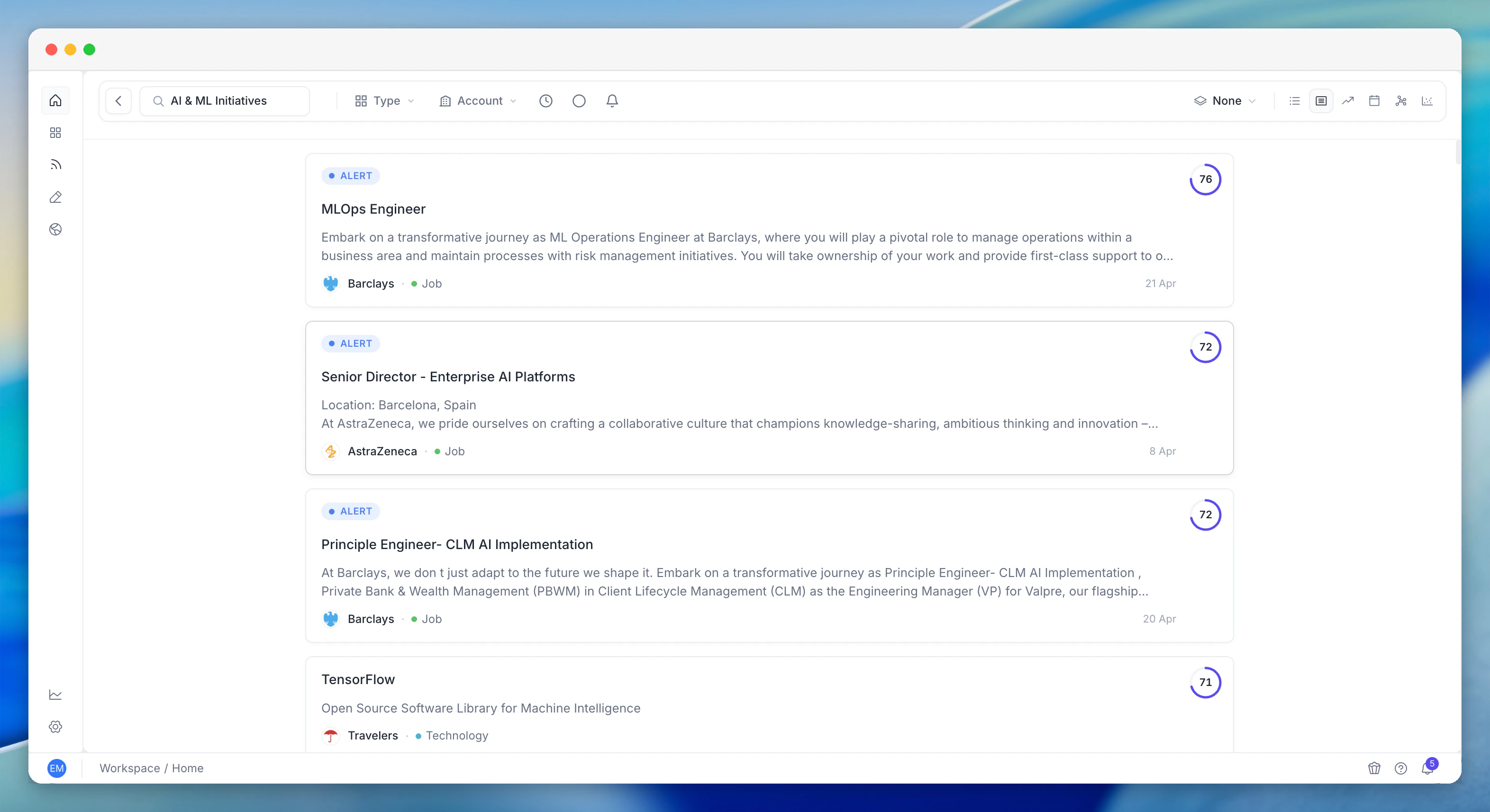 The same Unified Search engine powers single-company timelines, dashboards, and the global search bar. One search experience, consistent everywhere in PG:AI.
## How it works
Type a natural-language query - "cloud migration strategy", "companies investing in data engineering", "recent leadership changes" - and Unified Search returns results from across every account in your portfolio, ranked by relevance.
A search for "cloud migration strategy" might return:
* The digital strategy a CTO articulated on the latest earnings call
* A new hire who just joined to lead the cloud migration project
* A news mention about the initiative that broke this morning
* The relevant technology in their stack
* An internal document you uploaded about the opportunity
All in one ranked list, strongest signals at the top.
## Search scopes
Unified Search works at three levels:
Search within one company's intelligence. Find specific insights, contacts, or events for the account you're focused on.
Search across all accounts you're tracking. See which of your accounts have the strongest signals for a given topic.
Search across every account in your organisation's PG:AI workspace. Discover accounts outside your book that other team members are tracking.
## Filters
Refine results without losing context:
**By type** - narrow to specific intelligence types: strategic priorities, goals, SWOT items, contacts, jobs, public events (earnings calls, investor days), news mentions, web pages, technologies, public filings, org documents, company documents, conversations, or content.
**By date range** - last day, last week, last month, last quarter, last year, or a custom range. Useful for "what's changed recently" queries.
**By account** - focus on specific companies or expand to the full portfolio.
Every result carries a relevance score so you can immediately see what's worth your attention.
## Three views
The same search results can be displayed in three different ways, depending on what you need:
**Chronological feed.** Results ordered by date, most recent first. Best for answering "what's changed recently?" or "what happened this quarter?"
Each entry shows the intelligence type, the account it belongs to, a relevance score, and a preview of the content. Click to expand the full record in a sidebar.
**Grouped by account.** Results clustered by company, with the strongest signals surfaced for each. Best for answering "which accounts should I focus on for this topic?"
Expand any company to see all matching results. Compare signal strength across your portfolio at a glance.
**Visual network.** A graph showing how accounts connect to your search criteria. Nodes are companies and topics, edges show connections. Best for answering "how does everything connect?" and discovering non-obvious relationships.
Useful for finding accounts you didn't know were relevant to a topic. The graph reveals clusters and patterns that a flat list can't.
## Drilling into results
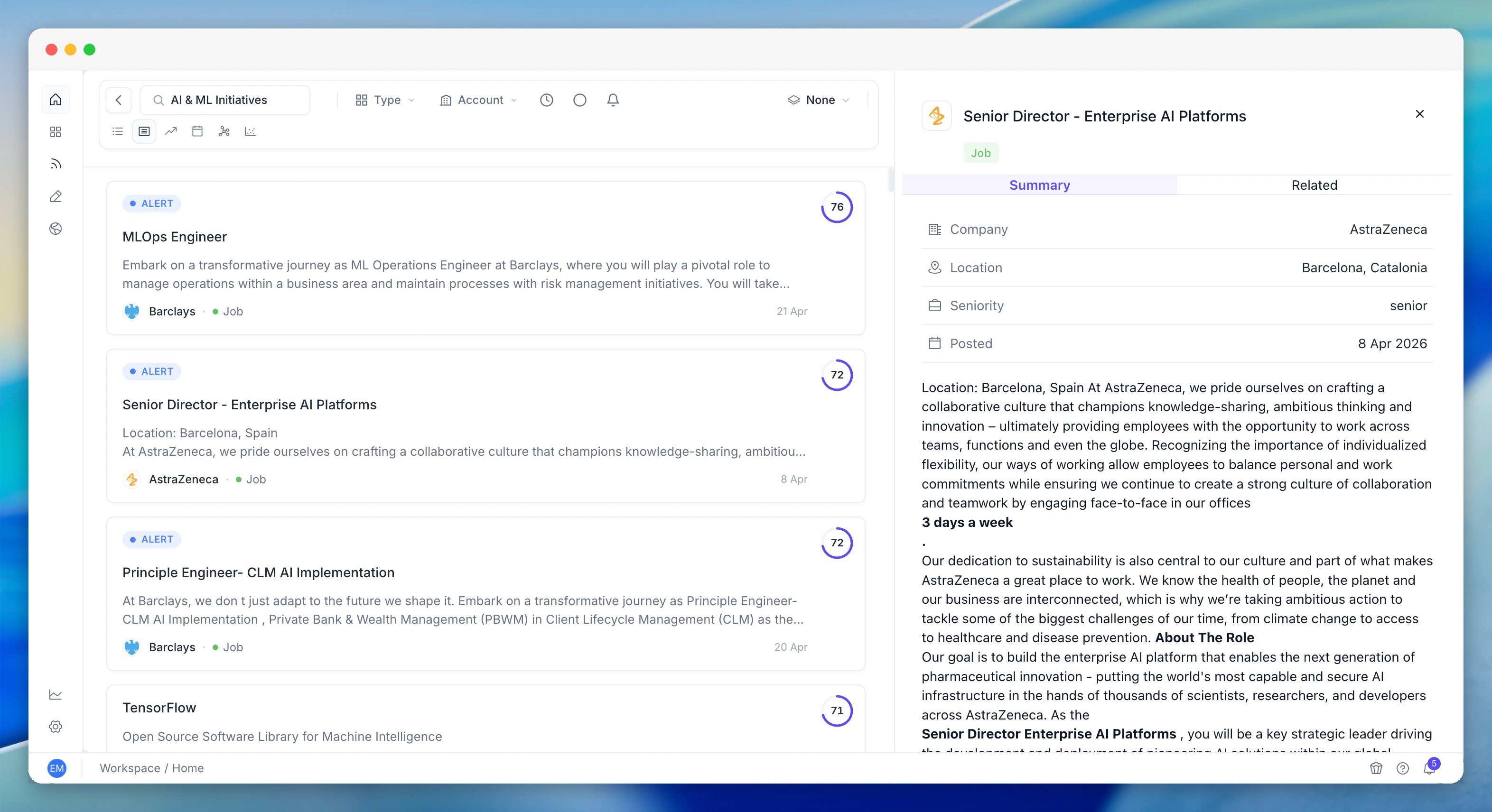
Click any result to open a sidebar showing:
* The full record with all content
* Source attribution - where PG:AI found this information
* Related items - other intelligence connected to this result
* A link to the full account page for deeper exploration
The same Unified Search engine powers single-company timelines, dashboards, and the global search bar. One search experience, consistent everywhere in PG:AI.
## How it works
Type a natural-language query - "cloud migration strategy", "companies investing in data engineering", "recent leadership changes" - and Unified Search returns results from across every account in your portfolio, ranked by relevance.
A search for "cloud migration strategy" might return:
* The digital strategy a CTO articulated on the latest earnings call
* A new hire who just joined to lead the cloud migration project
* A news mention about the initiative that broke this morning
* The relevant technology in their stack
* An internal document you uploaded about the opportunity
All in one ranked list, strongest signals at the top.
## Search scopes
Unified Search works at three levels:
Search within one company's intelligence. Find specific insights, contacts, or events for the account you're focused on.
Search across all accounts you're tracking. See which of your accounts have the strongest signals for a given topic.
Search across every account in your organisation's PG:AI workspace. Discover accounts outside your book that other team members are tracking.
## Filters
Refine results without losing context:
**By type** - narrow to specific intelligence types: strategic priorities, goals, SWOT items, contacts, jobs, public events (earnings calls, investor days), news mentions, web pages, technologies, public filings, org documents, company documents, conversations, or content.
**By date range** - last day, last week, last month, last quarter, last year, or a custom range. Useful for "what's changed recently" queries.
**By account** - focus on specific companies or expand to the full portfolio.
Every result carries a relevance score so you can immediately see what's worth your attention.
## Three views
The same search results can be displayed in three different ways, depending on what you need:
**Chronological feed.** Results ordered by date, most recent first. Best for answering "what's changed recently?" or "what happened this quarter?"
Each entry shows the intelligence type, the account it belongs to, a relevance score, and a preview of the content. Click to expand the full record in a sidebar.
**Grouped by account.** Results clustered by company, with the strongest signals surfaced for each. Best for answering "which accounts should I focus on for this topic?"
Expand any company to see all matching results. Compare signal strength across your portfolio at a glance.
**Visual network.** A graph showing how accounts connect to your search criteria. Nodes are companies and topics, edges show connections. Best for answering "how does everything connect?" and discovering non-obvious relationships.
Useful for finding accounts you didn't know were relevant to a topic. The graph reveals clusters and patterns that a flat list can't.
## Drilling into results
Click any result to open a sidebar showing:
* The full record with all content
* Source attribution - where PG:AI found this information
* Related items - other intelligence connected to this result
* A link to the full account page for deeper exploration
 ## How to use it
**Morning routine:** Search for your key strategic topics to see what's new across your accounts. Check if anything changed overnight.
**Meeting prep:** Search the account name plus a topic - "Barclays AI strategy" - to pull everything PG:AI knows into one view before your call.
**Territory discovery:** Search a broad topic - "digital transformation in financial services" - across the full organisation to find accounts you should be paying attention to.
**Competitive research:** Search competitor names to see which of your accounts are mentioning them in earnings calls, news, or job postings.
**Cross-account patterns:** Search a technology or initiative to see adoption trends across your portfolio. "Kubernetes adoption" shows which accounts are hiring for it, mentioning it in strategy documents, or adding it to their stack.
## Related features
Activity Pulse shows what's happening across your portfolio at a glance. Use it alongside Unified Search for a complete cross-account view.
Every search result links to full account intelligence. Drill down from a search hit to the complete picture.
Found something interesting in search? Jump to the Agent to ask questions, create documents, or trigger workflows based on what you found.
## How to use it
**Morning routine:** Search for your key strategic topics to see what's new across your accounts. Check if anything changed overnight.
**Meeting prep:** Search the account name plus a topic - "Barclays AI strategy" - to pull everything PG:AI knows into one view before your call.
**Territory discovery:** Search a broad topic - "digital transformation in financial services" - across the full organisation to find accounts you should be paying attention to.
**Competitive research:** Search competitor names to see which of your accounts are mentioning them in earnings calls, news, or job postings.
**Cross-account patterns:** Search a technology or initiative to see adoption trends across your portfolio. "Kubernetes adoption" shows which accounts are hiring for it, mentioning it in strategy documents, or adding it to their stack.
## Related features
Activity Pulse shows what's happening across your portfolio at a glance. Use it alongside Unified Search for a complete cross-account view.
Every search result links to full account intelligence. Drill down from a search hit to the complete picture.
Found something interesting in search? Jump to the Agent to ask questions, create documents, or trigger workflows based on what you found.