> ## Documentation Index
> Fetch the complete documentation index at: https://docs.getpg.ai/llms.txt
> Use this file to discover all available pages before exploring further.
# Contacts
> Every contact across every account, searchable and filterable in one view
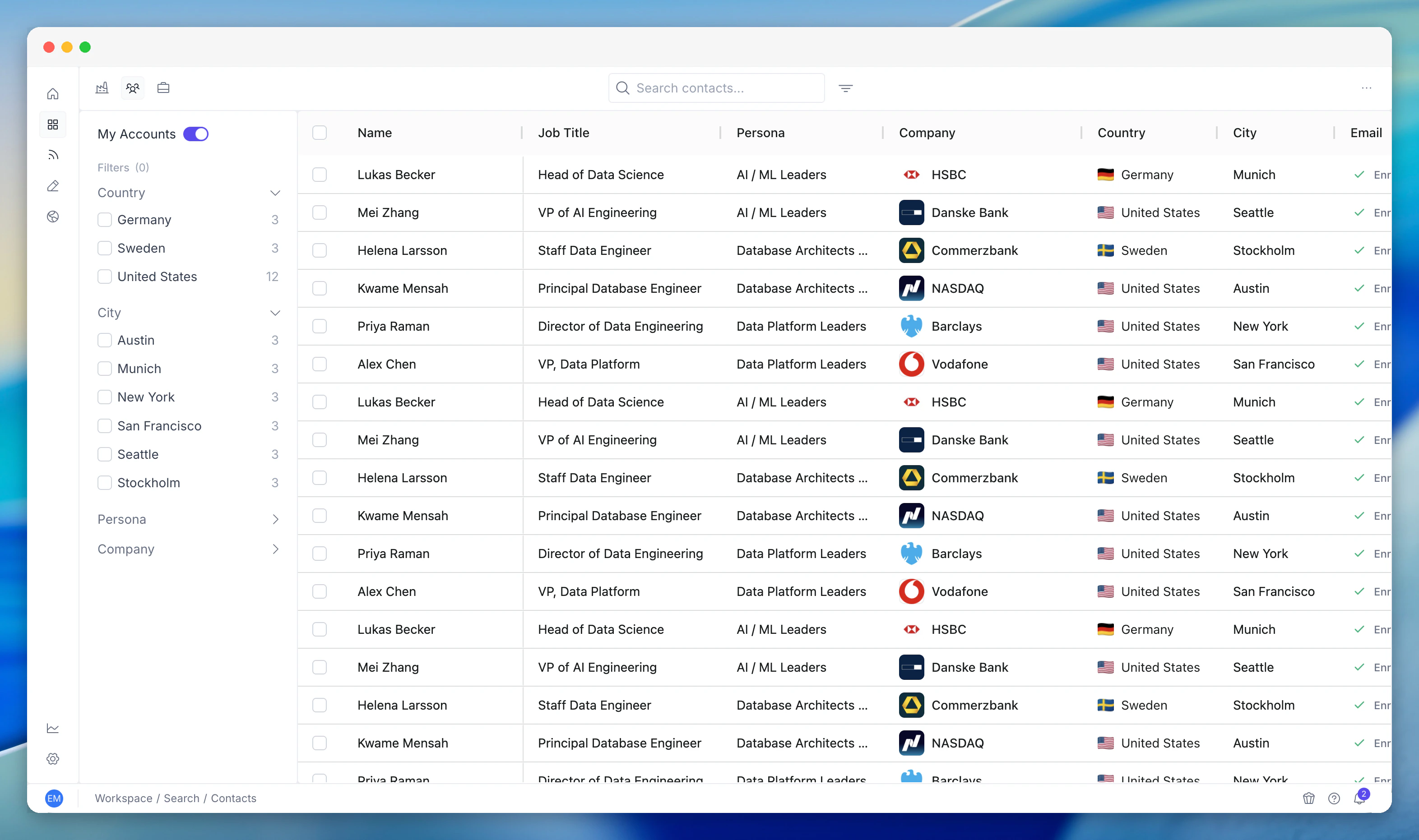
**Contacts** gives you a cross-account view of every person in your PG:AI workspace. Instead of opening accounts one at a time to find people, this view shows all contacts in one searchable, filterable table.
 ## What you see
Every contact across all your accounts appears in the table with:
* **Name and job title**
* **Persona** - the persona tag PG:AI has matched them to (e.g. "AI / ML Leaders", "VP Engineering", "CTO / CIO")
* **Company** - which account they belong to
* **Country** - their location
* **Email** - verified email address where available
* **Enrichment status** - whether the contact has been enriched with additional data
All columns are sortable. Click any column header to reorder.
## Filtering
The sidebar filters let you slice the directory:
* **Persona** - filter to specific buyer personas you've defined in Configuration
* **Country** - focus on specific geographies
* **City** - drill into specific locations
* **Company** - narrow to contacts at specific accounts
Combine filters to find exactly who you need. "All AI / ML Leaders in the UK" or "All VP-level contacts at financial services companies" are simple filter combinations.
## How to use it
**Multi-threaded prospecting:** Filter by persona across your entire portfolio to find all the right stakeholders at once. Build outreach lists without opening accounts individually.
**Event preparation:** Attending a conference or industry event? Filter by city and persona to see which contacts from your accounts might be there.
**Team handoffs:** When reassigning accounts, use the directory to quickly see all contacts associated with specific companies.
**Enrichment management:** Sort by enrichment status to see which contacts need email and phone number enrichment. Prioritise enrichment for your most important personas.
Personas are defined in Configuration. The more precisely you define your buyer personas, the more useful the persona filter becomes in **Contacts**.
## Related features
Discovery finds new contacts at target accounts. **Contacts** shows everyone you've already discovered and enriched.
Click any contact in the directory to see their full intelligence profile - career history, expertise, buying role prediction, and relevance graph.
Accounts shows companies. Contacts shows people. Both are cross-account views in Workspace.
## What you see
Every contact across all your accounts appears in the table with:
* **Name and job title**
* **Persona** - the persona tag PG:AI has matched them to (e.g. "AI / ML Leaders", "VP Engineering", "CTO / CIO")
* **Company** - which account they belong to
* **Country** - their location
* **Email** - verified email address where available
* **Enrichment status** - whether the contact has been enriched with additional data
All columns are sortable. Click any column header to reorder.
## Filtering
The sidebar filters let you slice the directory:
* **Persona** - filter to specific buyer personas you've defined in Configuration
* **Country** - focus on specific geographies
* **City** - drill into specific locations
* **Company** - narrow to contacts at specific accounts
Combine filters to find exactly who you need. "All AI / ML Leaders in the UK" or "All VP-level contacts at financial services companies" are simple filter combinations.
## How to use it
**Multi-threaded prospecting:** Filter by persona across your entire portfolio to find all the right stakeholders at once. Build outreach lists without opening accounts individually.
**Event preparation:** Attending a conference or industry event? Filter by city and persona to see which contacts from your accounts might be there.
**Team handoffs:** When reassigning accounts, use the directory to quickly see all contacts associated with specific companies.
**Enrichment management:** Sort by enrichment status to see which contacts need email and phone number enrichment. Prioritise enrichment for your most important personas.
Personas are defined in Configuration. The more precisely you define your buyer personas, the more useful the persona filter becomes in **Contacts**.
## Related features
Discovery finds new contacts at target accounts. **Contacts** shows everyone you've already discovered and enriched.
Click any contact in the directory to see their full intelligence profile - career history, expertise, buying role prediction, and relevance graph.
Accounts shows companies. Contacts shows people. Both are cross-account views in Workspace.