> ## Documentation Index
> Fetch the complete documentation index at: https://docs.getpg.ai/llms.txt
> Use this file to discover all available pages before exploring further.
# Accounts
> Manage every company in your workspace from one sortable, searchable table
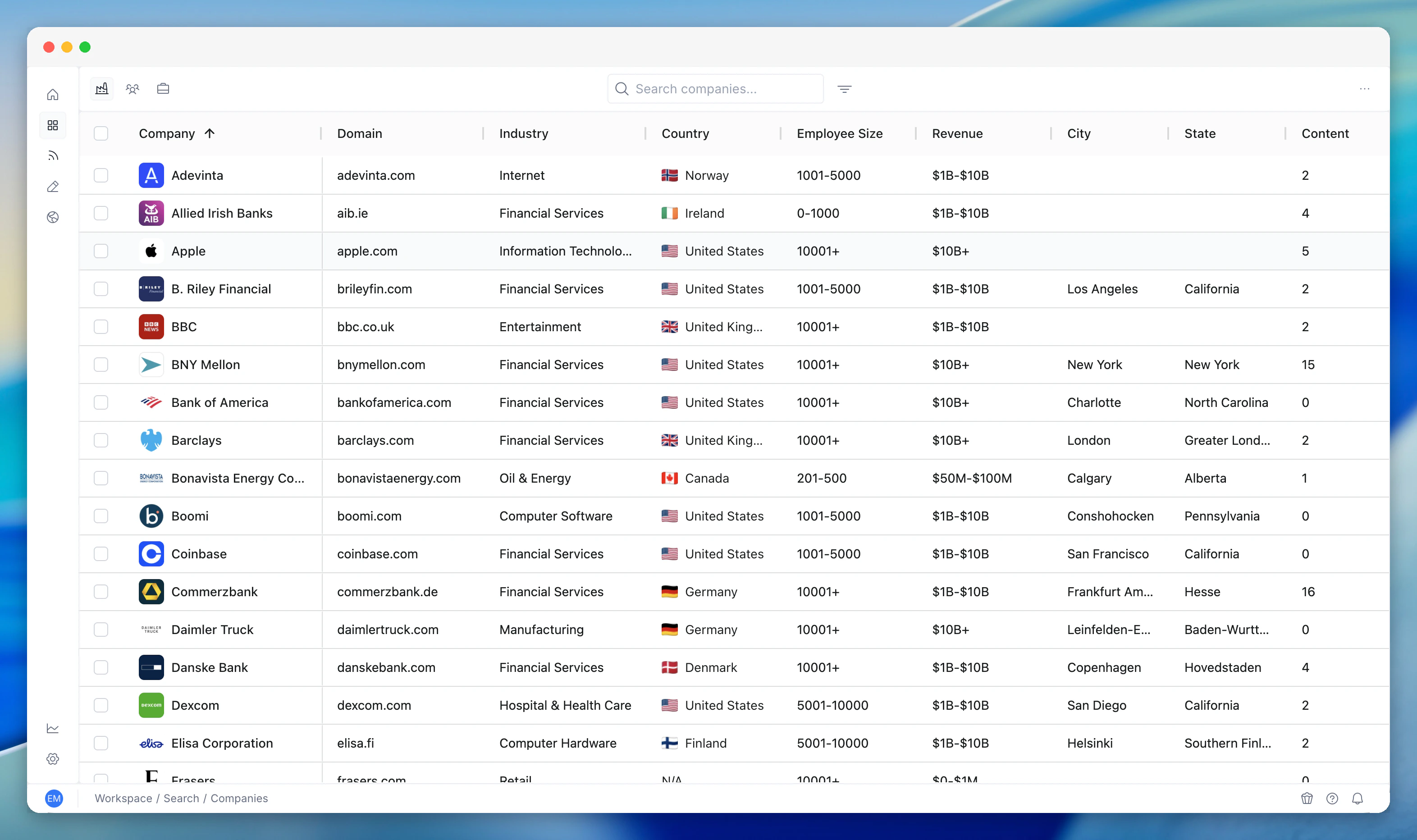
**Accounts** is your complete view of every company in your PG:AI workspace. It's a sortable, searchable table showing domain, industry, country, employee size, revenue, and content count for every account - the management layer for your portfolio.
 ## What you see
Every account in your workspace appears in the table with:
* **Company name and domain**
* **Industry** - the sector classification
* **Country** - headquarters location
* **Employee count** - company size
* **Revenue** - annual revenue where available
* **Content count** - how much intelligence PG:AI has gathered for this account. Higher numbers mean deeper intelligence
All columns are sortable. Click any column header to sort ascending or descending.
## Filtering
The sidebar gives you multi-faceted filtering:
* **Country** - filter to specific geographies
* **Industry** - focus on specific sectors
* **Revenue band** - segment by company size
* **Employee size** - filter by headcount ranges
* **City and state** - drill into specific locations
* **My Accounts** - toggle to see only accounts assigned to you, or expand to the full workspace
Combine filters for precise segmentation. "All German financial services companies with 1,000+ employees" is two clicks.
## Adding companies
Search for a company by name directly from **Accounts**. When you find it:
1. Click **Add** to bring it into your workspace
2. PG:AI starts building intelligence immediately - no manual data entry, no CSV imports
3. Enrichment runs automatically across all intelligence dimensions
Content count is a quick indicator of intelligence depth. A newly added account starts at zero and climbs as enrichment runs. Accounts with high content counts have the richest intelligence available.
## How to use it
**Portfolio management:** Sort by content count to see which accounts have the deepest intelligence and which might need enrichment. Sort by revenue or employee count to segment by company size.
**Adding new accounts:** When you pick up new accounts or start a new territory, use the search to add companies one at a time. For bulk additions, use Territory import.
**Quick lookup:** Search for a specific company to jump straight to its account page. Faster than navigating through Territory.
## Related features
Territory is where you score, prioritise, and plan across accounts. Accounts is the simpler management view for the full portfolio.
Accounts shows companies. Contacts shows people across those companies. Both live in Workspace.
Accounts lists your companies. Unified Search lets you query the intelligence inside them.
## What you see
Every account in your workspace appears in the table with:
* **Company name and domain**
* **Industry** - the sector classification
* **Country** - headquarters location
* **Employee count** - company size
* **Revenue** - annual revenue where available
* **Content count** - how much intelligence PG:AI has gathered for this account. Higher numbers mean deeper intelligence
All columns are sortable. Click any column header to sort ascending or descending.
## Filtering
The sidebar gives you multi-faceted filtering:
* **Country** - filter to specific geographies
* **Industry** - focus on specific sectors
* **Revenue band** - segment by company size
* **Employee size** - filter by headcount ranges
* **City and state** - drill into specific locations
* **My Accounts** - toggle to see only accounts assigned to you, or expand to the full workspace
Combine filters for precise segmentation. "All German financial services companies with 1,000+ employees" is two clicks.
## Adding companies
Search for a company by name directly from **Accounts**. When you find it:
1. Click **Add** to bring it into your workspace
2. PG:AI starts building intelligence immediately - no manual data entry, no CSV imports
3. Enrichment runs automatically across all intelligence dimensions
Content count is a quick indicator of intelligence depth. A newly added account starts at zero and climbs as enrichment runs. Accounts with high content counts have the richest intelligence available.
## How to use it
**Portfolio management:** Sort by content count to see which accounts have the deepest intelligence and which might need enrichment. Sort by revenue or employee count to segment by company size.
**Adding new accounts:** When you pick up new accounts or start a new territory, use the search to add companies one at a time. For bulk additions, use Territory import.
**Quick lookup:** Search for a specific company to jump straight to its account page. Faster than navigating through Territory.
## Related features
Territory is where you score, prioritise, and plan across accounts. Accounts is the simpler management view for the full portfolio.
Accounts shows companies. Contacts shows people across those companies. Both live in Workspace.
Accounts lists your companies. Unified Search lets you query the intelligence inside them.