> ## Documentation Index
> Fetch the complete documentation index at: https://docs.getpg.ai/llms.txt
> Use this file to discover all available pages before exploring further.
# Account Toolbar
> Search all account insights, discover jobs and contacts, and upload files - all from one toolbar in the Studio view
A unified toolbar at the top of the Studio section that gives you fast access to three essential account actions: searching across all intelligence, discovering jobs and contacts, and uploading files for the agent to reference.
## Overview
The Account Toolbar sits at the top of the Studio tab in any account view. It has three sub-sections, each accessible via a tab:
| Section | What it does |
| ---------------- | ---------------------------------------------------------------------------------------------------------------------------------------------- |
| **Search** | Query across all account intelligence for the account - strategic priorities, tech stack, financials, contacts, jobs, and enrichment history |
| **Discover** | Focused search for jobs and contacts at the account |
| **File Uploads** | Upload documents to the account for the agent to reference |
***
## Search
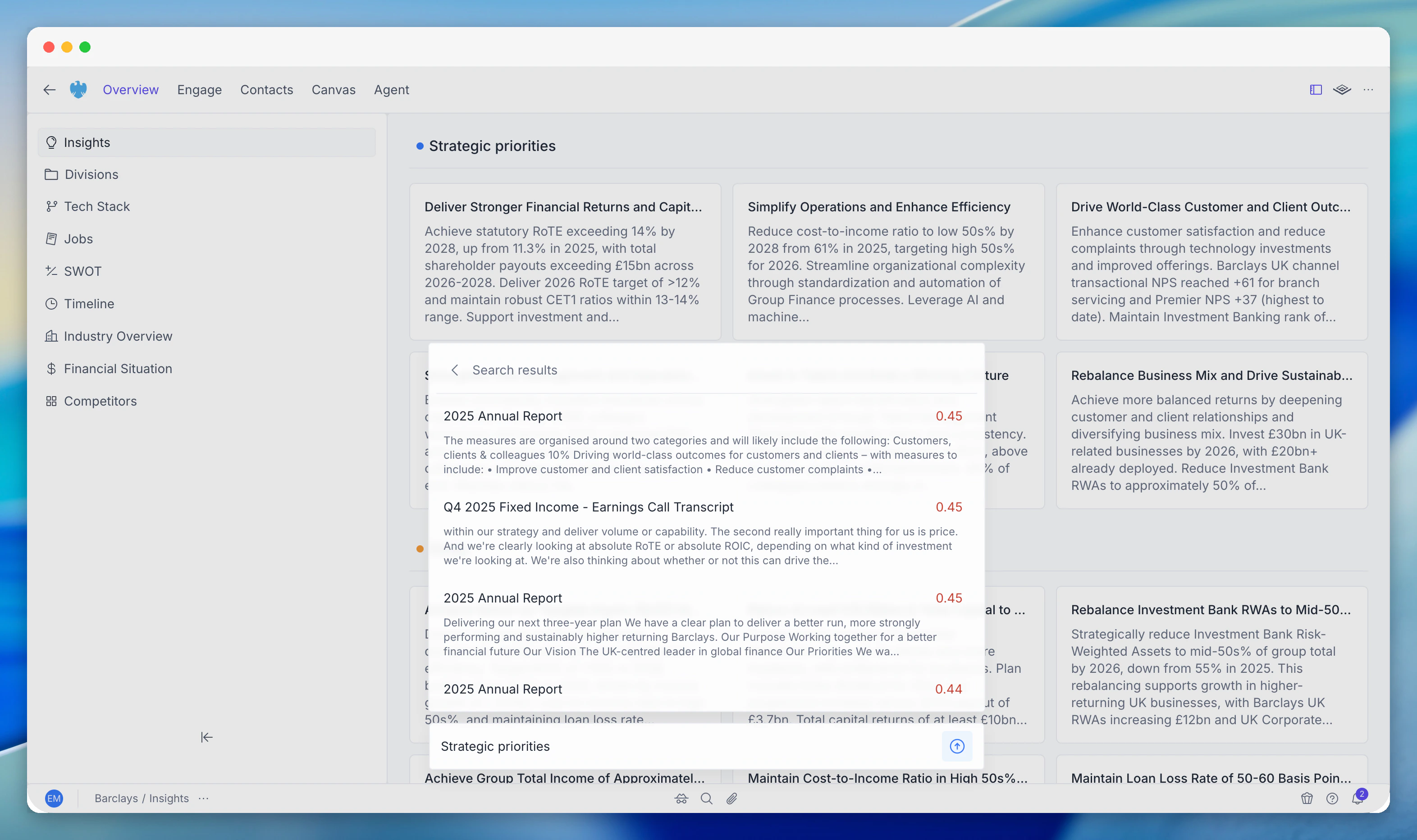
Search all the insights PG:AI has about an account in one place. Instead of navigating between Strategic Priorities, Tech Stack, Financials, and Contacts individually, Search queries across every Intelligence module and returns matching results.
 ### How to use it
Click the **Search** tab in the Account Toolbar.
Type a keyword, phrase, or question (e.g. "cloud migration", "VP Engineering", "revenue growth").
Results appear grouped by source module - strategic priorities, contacts, tech stack, financials, jobs, and enrichment data.
Click any result to navigate to the full detail view within the relevant Intelligence module.
### Example queries
| Query | What it finds |
| --------------- | ----------------------------------------------------------------------------------------------- |
| `"AI strategy"` | Strategic priorities, job postings, and tech stack entries related to AI |
| `"CFO"` | Matching contacts and any insights that reference the CFO |
| `"AWS"` | Tech stack data, job postings mentioning AWS, and strategic insights about cloud infrastructure |
| `"Q3 earnings"` | Financial intelligence and enrichment data from earnings calls |
Use Search to quickly verify whether specific intelligence exists before asking the Agent for a deeper analysis. It's faster than navigating through each module individually.
***
## Discover
A focused search interface for exploring **jobs** and **contacts** at the account. Discover surfaces hiring activity and organisational data that help you understand the company and identify engagement opportunities.
### How to use it
Click the **Search** tab in the Account Toolbar.
Type a keyword, phrase, or question (e.g. "cloud migration", "VP Engineering", "revenue growth").
Results appear grouped by source module - strategic priorities, contacts, tech stack, financials, jobs, and enrichment data.
Click any result to navigate to the full detail view within the relevant Intelligence module.
### Example queries
| Query | What it finds |
| --------------- | ----------------------------------------------------------------------------------------------- |
| `"AI strategy"` | Strategic priorities, job postings, and tech stack entries related to AI |
| `"CFO"` | Matching contacts and any insights that reference the CFO |
| `"AWS"` | Tech stack data, job postings mentioning AWS, and strategic insights about cloud infrastructure |
| `"Q3 earnings"` | Financial intelligence and enrichment data from earnings calls |
Use Search to quickly verify whether specific intelligence exists before asking the Agent for a deeper analysis. It's faster than navigating through each module individually.
***
## Discover
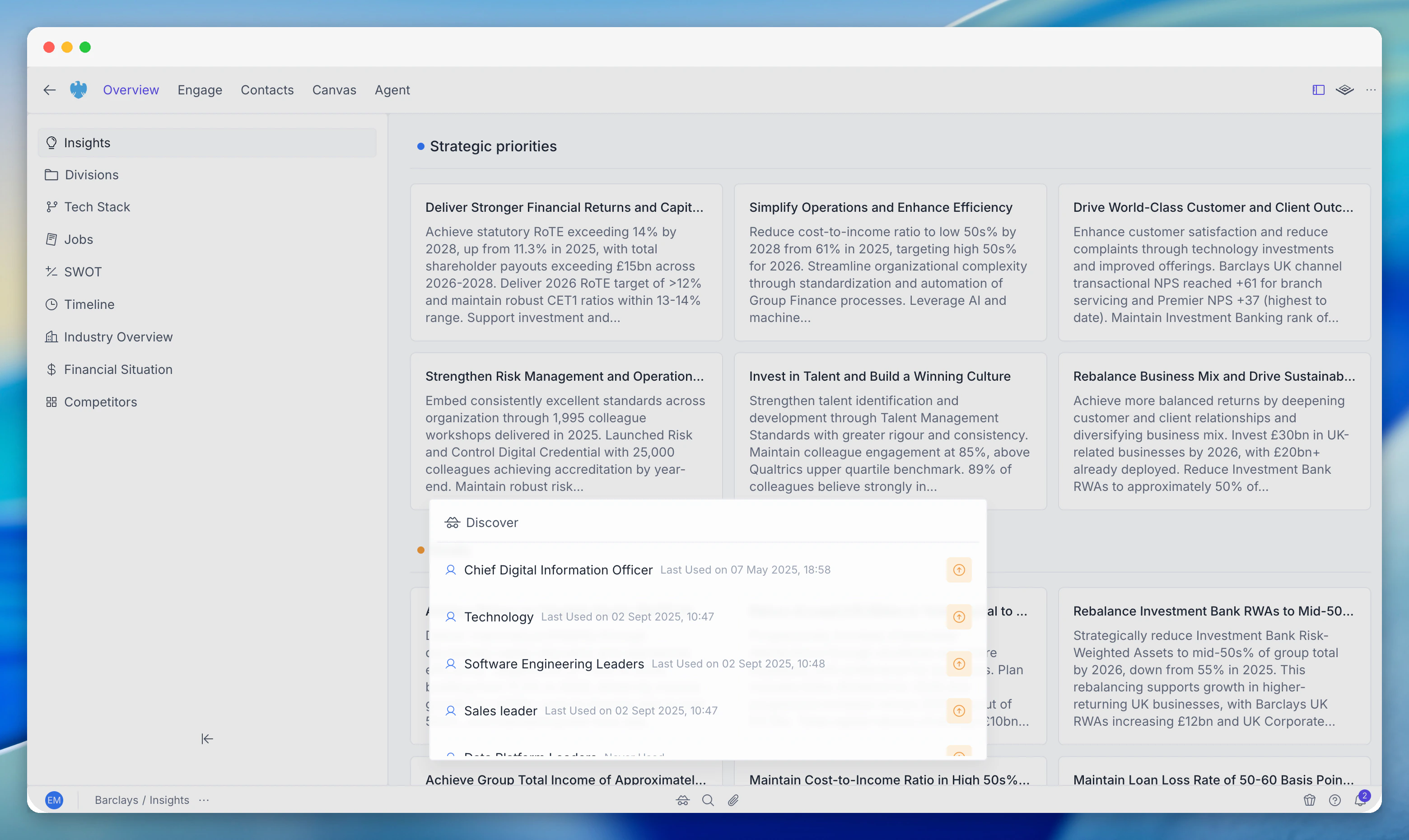
A focused search interface for exploring **jobs** and **contacts** at the account. Discover surfaces hiring activity and organisational data that help you understand the company and identify engagement opportunities.
 ### Contacts
Search for people at the account by name, role, department, or seniority level.
* Filter by **department** (Engineering, Sales, Marketing, Finance, etc.)
* Filter by **seniority** (C-Suite, VP, Director, Manager)
* View role, reporting structure, and tenure
* Click a contact to open their full profile in the Contacts & Org Chart module
Discover is particularly useful for meeting prep - quickly find who you'll be meeting and what roles are being hired around them.
### Jobs
Search for job postings at the account by title, function, or keyword.
* Filter by **department**, **level**, or **posting date**
* View job descriptions, requirements, and posting source
* Use job postings to identify investment areas and strategic priorities
Job postings often signal strategic priorities before they appear in public announcements. A cluster of "AI Engineer" postings tells you something about company direction before the press release.
If Discover doesn't surface what you need, ask the Agent to research deeper - it can trigger additional enrichment beyond what's currently in the profile.
***
## File Uploads
Upload documents directly to an account. Uploaded files are indexed and become part of the account's intelligence context - available to the Agent, Canvas, and Workflows.
### Contacts
Search for people at the account by name, role, department, or seniority level.
* Filter by **department** (Engineering, Sales, Marketing, Finance, etc.)
* Filter by **seniority** (C-Suite, VP, Director, Manager)
* View role, reporting structure, and tenure
* Click a contact to open their full profile in the Contacts & Org Chart module
Discover is particularly useful for meeting prep - quickly find who you'll be meeting and what roles are being hired around them.
### Jobs
Search for job postings at the account by title, function, or keyword.
* Filter by **department**, **level**, or **posting date**
* View job descriptions, requirements, and posting source
* Use job postings to identify investment areas and strategic priorities
Job postings often signal strategic priorities before they appear in public announcements. A cluster of "AI Engineer" postings tells you something about company direction before the press release.
If Discover doesn't surface what you need, ask the Agent to research deeper - it can trigger additional enrichment beyond what's currently in the profile.
***
## File Uploads
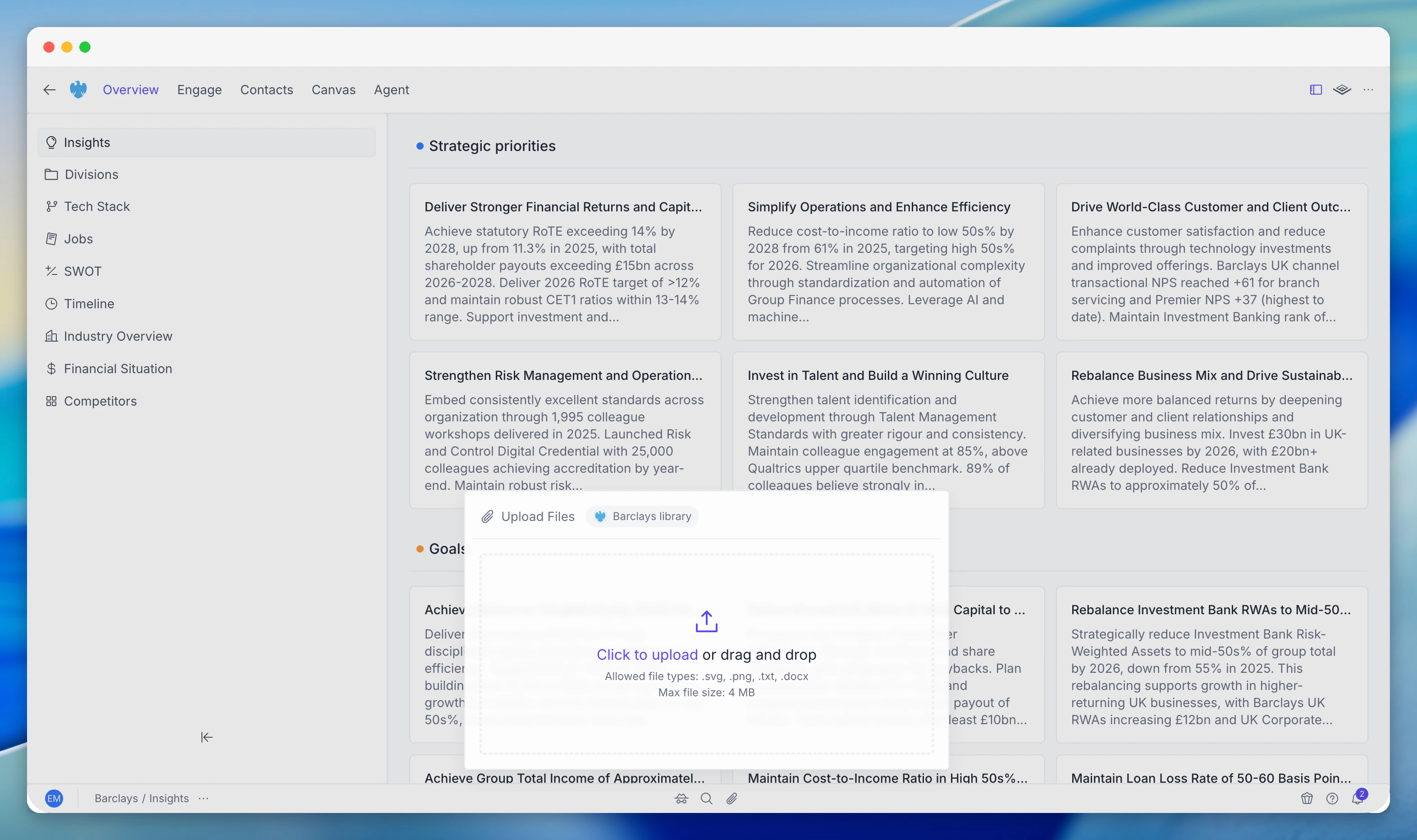
Upload documents directly to an account. Uploaded files are indexed and become part of the account's intelligence context - available to the Agent, Canvas, and Workflows.
 ### How to upload
Click the **File Uploads** tab in the Account Toolbar.
Drag and drop files into the upload area, or click to browse your computer.
Uploaded files are automatically indexed and immediately available to the agent.
### Supported formats
| Format | Extension | Max size |
| ---------- | --------- | -------- |
| PDF | `.pdf` | 50 MB |
| Word | `.docx` | 50 MB |
| Plain text | `.txt` | 10 MB |
| CSV | `.csv` | 25 MB |
| Excel | `.xlsx` | 50 MB |
| PowerPoint | `.pptx` | 50 MB |
### What to upload
| Document type | Why it's useful |
| ------------------------ | ------------------------------------------------------------------ |
| Meeting notes | Studio references your notes when preparing for follow-up meetings |
| Internal briefs | Company-specific context your team has gathered outside PG:AI |
| Competitive analyses | Studio uses these when generating competitive positioning content |
| RFP / RFI documents | Studio references requirements when generating proposals |
| Account plans | Studio aligns its output with your existing account strategy |
| Email threads (exported) | Studio uses conversation history for context |
Uploaded files are account-level - all team members with access to the account can view and use them. Files persist until deleted.
### Managing files
* View all uploaded files in the file library
* Files show upload date, uploader, and file size
* Delete files you no longer need - deleted files are removed from the agent's context
Upload before asking the agent to generate content. The more context it has - meeting notes, internal briefs, competitive research - the better the output. Meeting notes are especially high-value because they contain context no enrichment source can provide.
***
## Related modules
Ask questions about the account using intelligence data and any files you've uploaded.
Generate documents that draw from uploaded files as well as Intelligence data.
Build automated pipelines that reference uploaded account documents at scale.
### How to upload
Click the **File Uploads** tab in the Account Toolbar.
Drag and drop files into the upload area, or click to browse your computer.
Uploaded files are automatically indexed and immediately available to the agent.
### Supported formats
| Format | Extension | Max size |
| ---------- | --------- | -------- |
| PDF | `.pdf` | 50 MB |
| Word | `.docx` | 50 MB |
| Plain text | `.txt` | 10 MB |
| CSV | `.csv` | 25 MB |
| Excel | `.xlsx` | 50 MB |
| PowerPoint | `.pptx` | 50 MB |
### What to upload
| Document type | Why it's useful |
| ------------------------ | ------------------------------------------------------------------ |
| Meeting notes | Studio references your notes when preparing for follow-up meetings |
| Internal briefs | Company-specific context your team has gathered outside PG:AI |
| Competitive analyses | Studio uses these when generating competitive positioning content |
| RFP / RFI documents | Studio references requirements when generating proposals |
| Account plans | Studio aligns its output with your existing account strategy |
| Email threads (exported) | Studio uses conversation history for context |
Uploaded files are account-level - all team members with access to the account can view and use them. Files persist until deleted.
### Managing files
* View all uploaded files in the file library
* Files show upload date, uploader, and file size
* Delete files you no longer need - deleted files are removed from the agent's context
Upload before asking the agent to generate content. The more context it has - meeting notes, internal briefs, competitive research - the better the output. Meeting notes are especially high-value because they contain context no enrichment source can provide.
***
## Related modules
Ask questions about the account using intelligence data and any files you've uploaded.
Generate documents that draw from uploaded files as well as Intelligence data.
Build automated pipelines that reference uploaded account documents at scale.